Installation
1 Introduction
TwinCAT3 has a development environment for software development called XAE and an execution environment for real-time processing called XAR. Then, the development environment PC and the execution environment PC can be separated by preparing a PC with XAE installed and a PC with XAR installed. This page introduces how to connect from the development environment PC to execution environment PC by remote connection.
I prepared a note PC Thinkpad E14 Gen3 for the development environment PC. Then, the execution environment PC is the mini PC ThinkCentre M75q Tiny Gen2.
Specifications of the Development Environment PC
- OS: Windows 11 Pro 64bit
- GPU: AMD Ryzen™ 7 5700U
- Memory: 8+8 GB DDR4-3200MHz
- 1st Storage: 256 GB SSD, M.2 PCIe-NVMe
- 2nd Storage: 1 TB SSD, M.2 PCIe-NVMe
Here, a 8 GB storage and the 2nd Storage have been added to empty slots respectively after purchase.
2 Installation of TwinCAT3
TwinCAT3 full setup installer is HERE.
2.1 Installation of XAR to the execution environment PC
- Execute TwinCAT3 full setup installer.
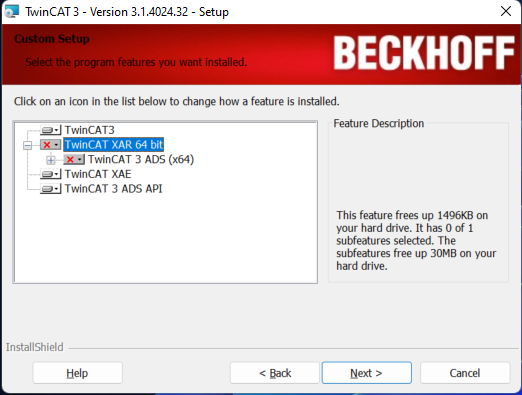
- Choose “Custom” setup type.
- Click “TwinCAT XAE”, choose “This fearure will not be available.”

2.2 Installation of XAE to the development environment PC
- Execute TwinCAT3 full setup installer.
- Choose “Custom” setup type.
- Click “TwinCAT XAR 64 bit”, choose “This fearure will not be available.”
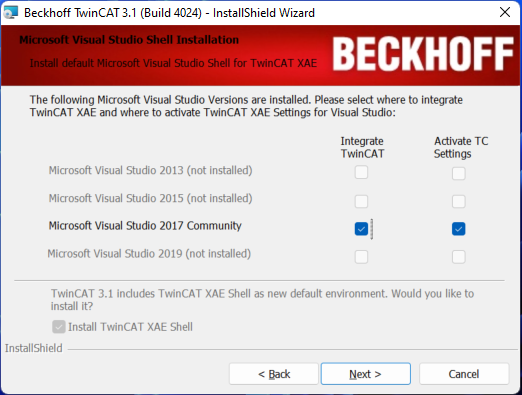
- Check the installed Visual Studio.
- Do not forget checking “Install TwinCAT XAE Shell” either, otherwise TwinCAT measurement will not be installed.